August 5, 2026
Building a Discord Interface for Claude Code
Disclaimer: The tool discussed in this post grants direct, programmatic access to the Discord API — including destructive actions like deleting channels and roles — through a bot token you control. It’s shared here for educational purposes, as-is and without warranty. If you build or run something similar, you’re responsible for reviewing what it does before it runs, securing your own credentials, and complying with Discord’s Terms of Service and Developer Policy.
I run several Discord servers, most of them small with just 10 or 30 members, but some of them have very complex roles and permissions. Trying to memorize who has access to what is a challenge. So I asked Claude for a bot that would do all that work for me. What resulted was this Python script after several prompts where I told Claude, “I don’t want to run the script. I want you to run the script.”
What Claude built
I asked for an audit of members on my servers. I have two servers with some overlap of members, and those members have different permissions on each server. For the first iteration, Claude built this Python script, which gave me the option to run —audit. That was nice, but I didn’t want to run the audit myself — I wanted Claude to do it. So I had Claude run it with the —audit option, and the output was quite nice. It highlighted members who have access to one server and not the other, members with access to different channels, and it highlighted roles. Claude built this using its artifact feature and sent me a link to open it on the website — a very nice-looking, easy-to-read audit of my members.
But like I initially said, I want Claude to run all these commands. I just want an interface to Discord’s API, so that is what I asked for. Next, I asked Claude to rebuild the script so it’s just API commands I can use to prompt Claude Code to do whatever I want. I might want it to:
- create channels
- delete channels
- add roles
- remove roles
- archive channels
That type of thing.
The script
After some back and forth, this is the script that resulted from probably five or six prompts to Claude Code.
The CLAUDE.md file is used to tell Claude how to drive the script, and it is as easy as granting X permission or Y role to this user or all of these users. But where it really shines is in bulk actions. Let’s say you have 50 channels you want to archive, and you want them named with the channel name followed by a date stamp. You can ask Claude to do that, and it will handle it for all of the channels. Doing all of that manually through the application or web interface would take a very, very long time.
The bot
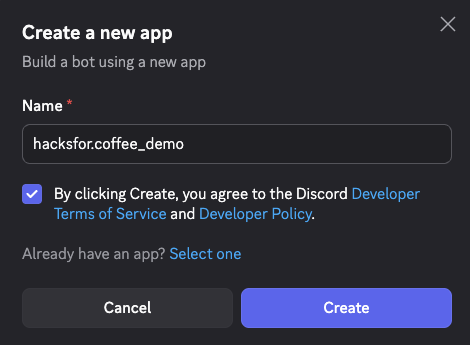
To create a bot for Discord, you have to go to the developer portal. Once on the developer portal, you create a new bot. Give it a name.
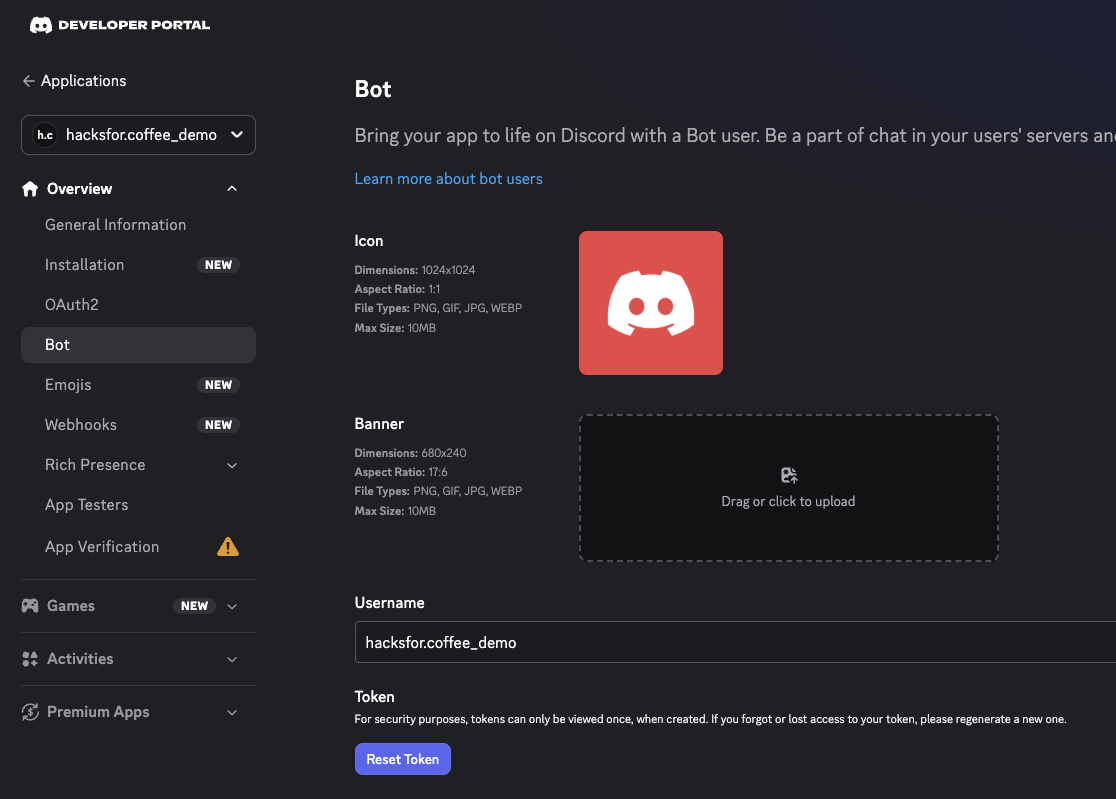
Once you have it created, then you can give it a banner and profile image. This is also where you get your token to use, and it will go in the .env file.
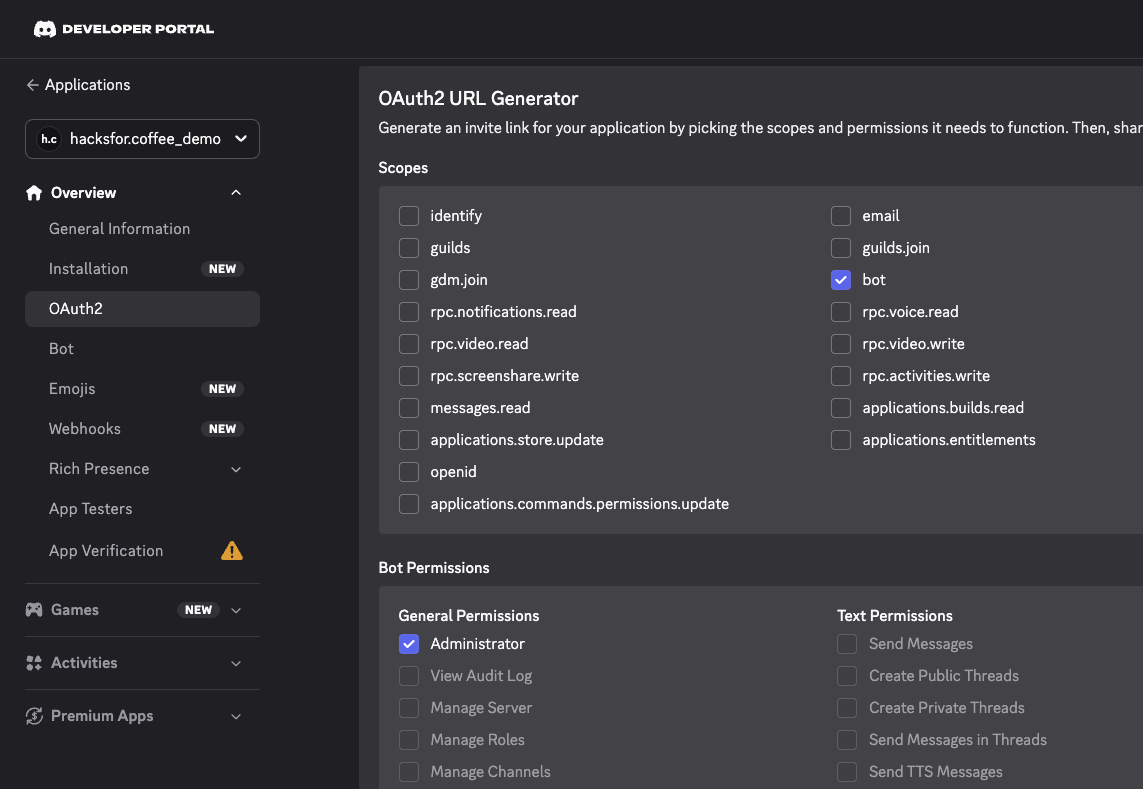
Finally, you need to add it to your servers. I set mine up with full admin rights on my server, but you could be more specific if you have other use cases in mind. Once you set the permissions, then you’ll use that link. You run that link to join it to whatever server you have permissions to join a bot to.
With all of that done, you can update your .env with your server info and the bot token, then you can run Claude code from the directory where the discord_api.py and CLAUDE.md. I would recommend a simple prompt to test.
Test access to my server.Thanks for reading.
This post was written by hacksforcoffee.